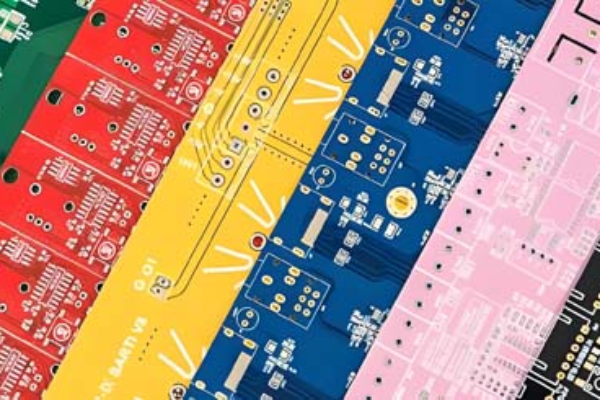
Creating a Gerber file is an essential step in the PCB manufacturing process. Gerber files contain the design information that fabricators use to produce your PCB accurately. Altium Designer, as one of the leading PCB design tools, offers a seamless process for generating these files. In this guide, we will walk you through the steps to generate a Gerber file using Altium Designer.
Table of Contents
What is a Gerber File?
A Gerber file is a standardized format that represents the layers of a PCB design. It contains information about:
Copper layers (traces, pads, and vias).
Solder mask.
Silkscreen (component labels and designators).
Drill data (holes for vias and through-hole components).
Board outline.
Each layer of the PCB is exported as an individual Gerber file, ensuring that the manufacturer can accurately recreate your design.
Steps to Generate Gerber Files in Altium Designer
Follow these steps to create Gerber files:
Prepare Your Design
Ensure that your PCB design is complete and free from errors.
Perform a Design Rule Check (DRC) to identify any violations.
Set Up Gerber Output
Open your PCB project in Altium Designer.
Go to File > Fabrication Outputs > Gerber Files.
Configure Gerber Settings
In the Gerber Setup dialog, configure the following options:
Units: Choose between millimeters or inches.
Format: Select a precision format (e.g., 2:5 for two digits before the decimal and five after).
Layers: Select the layers to include in the Gerber files (e.g., Top Layer, Bottom Layer, Solder Mask, Silkscreen, etc.).
Apertures: Choose RS-274X, which is the modern Gerber format.
Preview the Output
Use the preview function to check each layer’s appearance.
Ensure that all elements, such as pads, traces, and silkscreen, are visible and correctly positioned.
Generate the Files
Click OK to generate the Gerber files.
Altium Designer will save the files in a designated output folder.
Create Drill Files
Go to File > Fabrication Outputs > NC Drill Files.
Configure the drill settings and generate the files.
Verify the Gerber Files
Use a Gerber viewer to inspect the files and ensure accuracy.
Cross-check the layers to ensure there are no missing or misaligned elements.
Best Practices for Gerber File Generation
① Include a README: Provide a text file describing the contents of the Gerber files and any special instructions.
② Organize Files Clearly: Ensure that each Gerber file is named according to its layer (e.g., TopLayer.GTL, BottomLayer.GBL).
③ Consult with Your Manufacturer: Confirm the file requirements with your PCB fabricator to avoid compatibility issues.
Conclusion
Generating Gerber files in Altium Designer is a straightforward process, but attention to detail is crucial to ensure that your PCB is fabricated correctly. By following the steps and best practices outlined in this guide, you can confidently prepare your design for manufacturing.
For additional assistance or advanced settings, consult Altium Designer’s documentation or reach out to your PCB manufacturer for guidance. Accurate Gerber files are the foundation of a successful PCB production cycle.